



Your default printer is the one your Mac automatically uses when you print. Setting this correctly prevents printing to the wrong device.
Click the Apple menu () in the top left corner
Select System Settings
Select Printers & Scanners
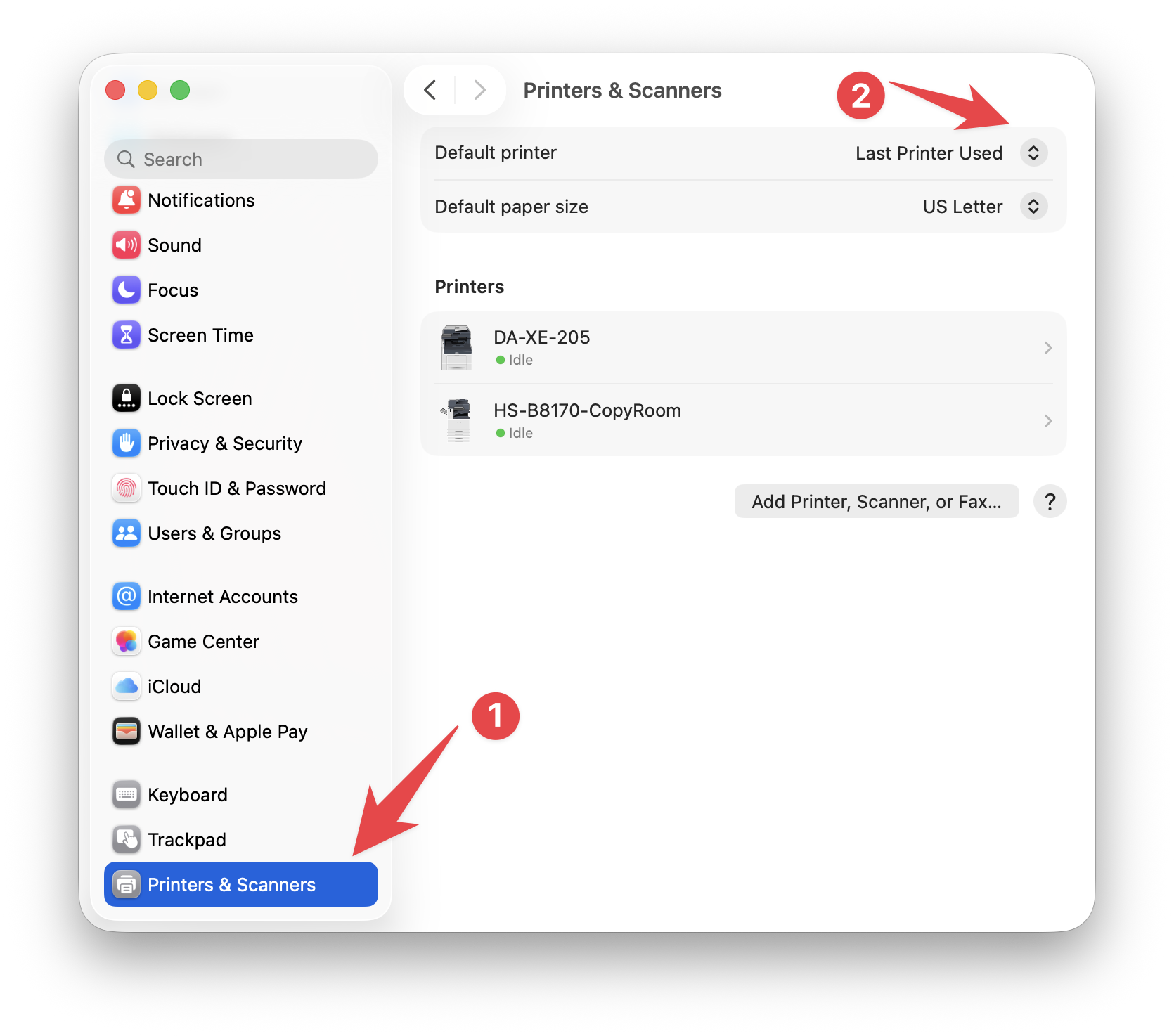
Select the Default printer [2] dropdown and choose one of the following:
- A specific printer that will stay as your default Printer. This printer will always be selected, unless you manually change it.
- Last Printer Used, which changes automatically based on your most recent print job.
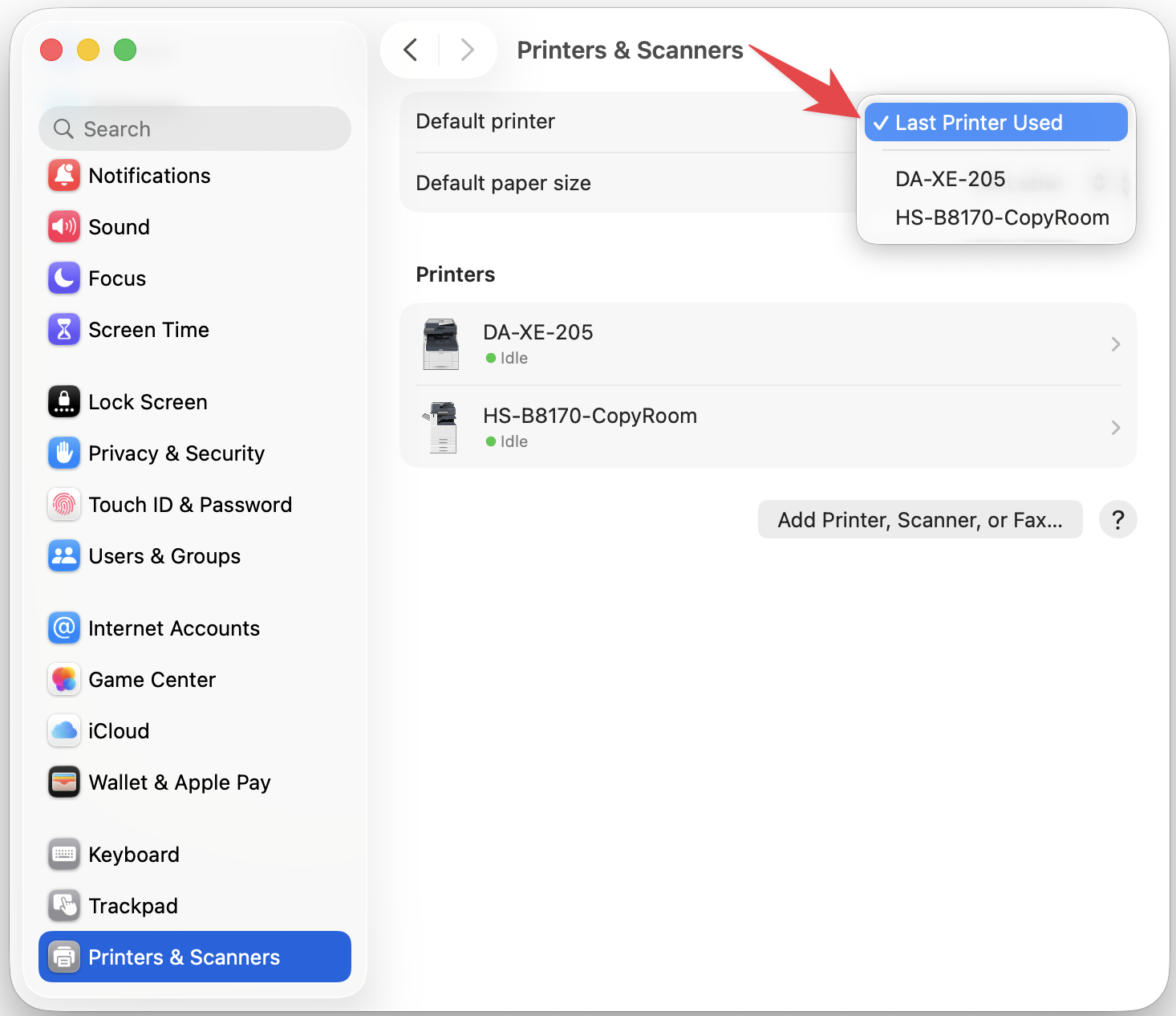
What to expect:
• Your selected printer will now be the default whenever you print.
• You can still choose a different printer manually if needed.
Important note:
• Your default printer will not automatically change just because you manually select a different print in a print dialog box.
• If you want it to change automatically, select Last Printer Used instead.
If you don’t see the printer you want, you may need to install it first using Self Service+. Select here for the knowledge base article on installing additional printers.

