Many years ago, Apple's operating system introduced a feature called "Natural Scrolling". With Natural Scrolling, a trackpad or a mouse wheel no longer follows the direction of the scrollbars. Rather, the pointer responds as if your finger were touching the screen. This is identical to the behavior seen when swiping up or down on a webpage on an iPad or iPhone.
Natural Scrolling is enabled by default on your computer. You can easily disable this feature if you would like to return to the scrolling that you have been used to over the years. The choice is yours.
To Enable/Disable natural scrolling:
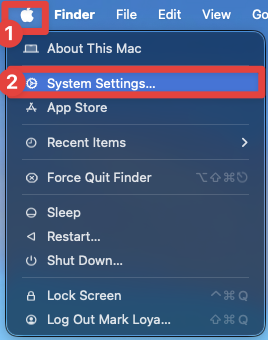
1. Click the Apple icon in the upper left corner of your screen and select System Settings.
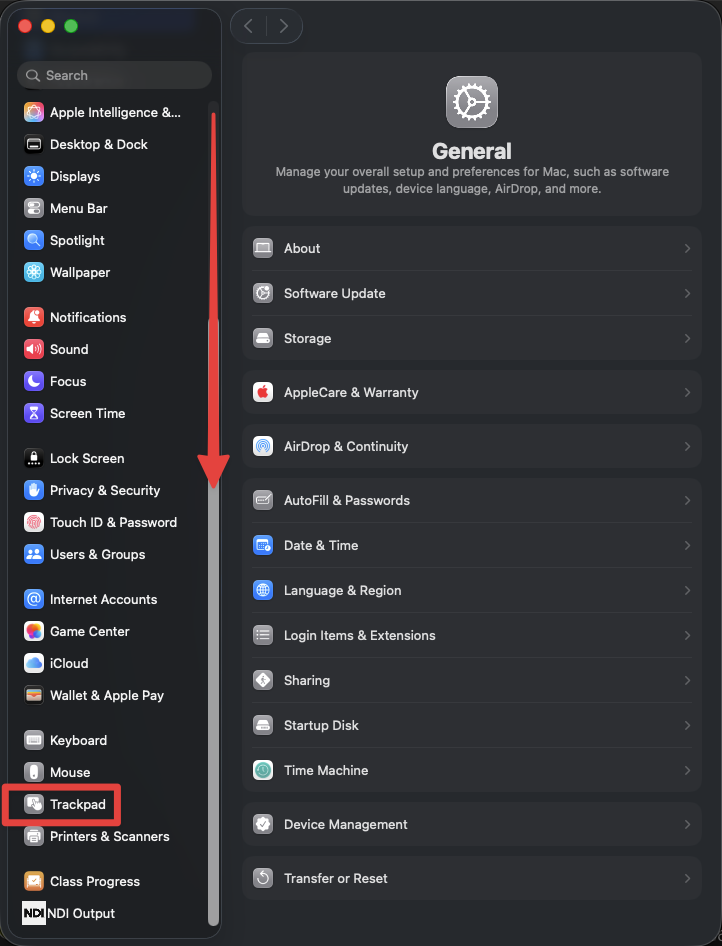
2. In the Systems Settings window, along the left sidebar, scroll down until you see Trackpad, and click it to enter the submenu.
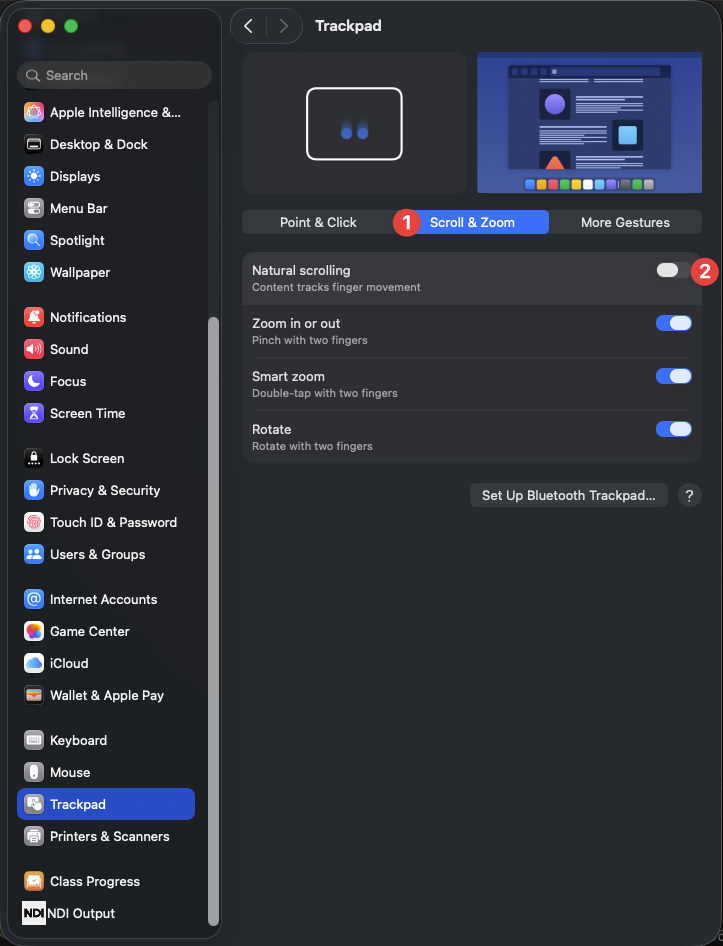
3. Next, select the middle section titled Scroll & Zoom. The option to enable/disable Natural Scrolling is at the top. If you hover the mouse cursor over that section, you see an animated preview of the scrolling behavior when Natural Scrolling is either enabled or disabled. Decide which option that you prefer.