Making Chrome your default browser on Mac

Last updated: Apr 27, 2026
5942
views

This guidance demonstrates making Google Chrome the default web browser on your Mac.
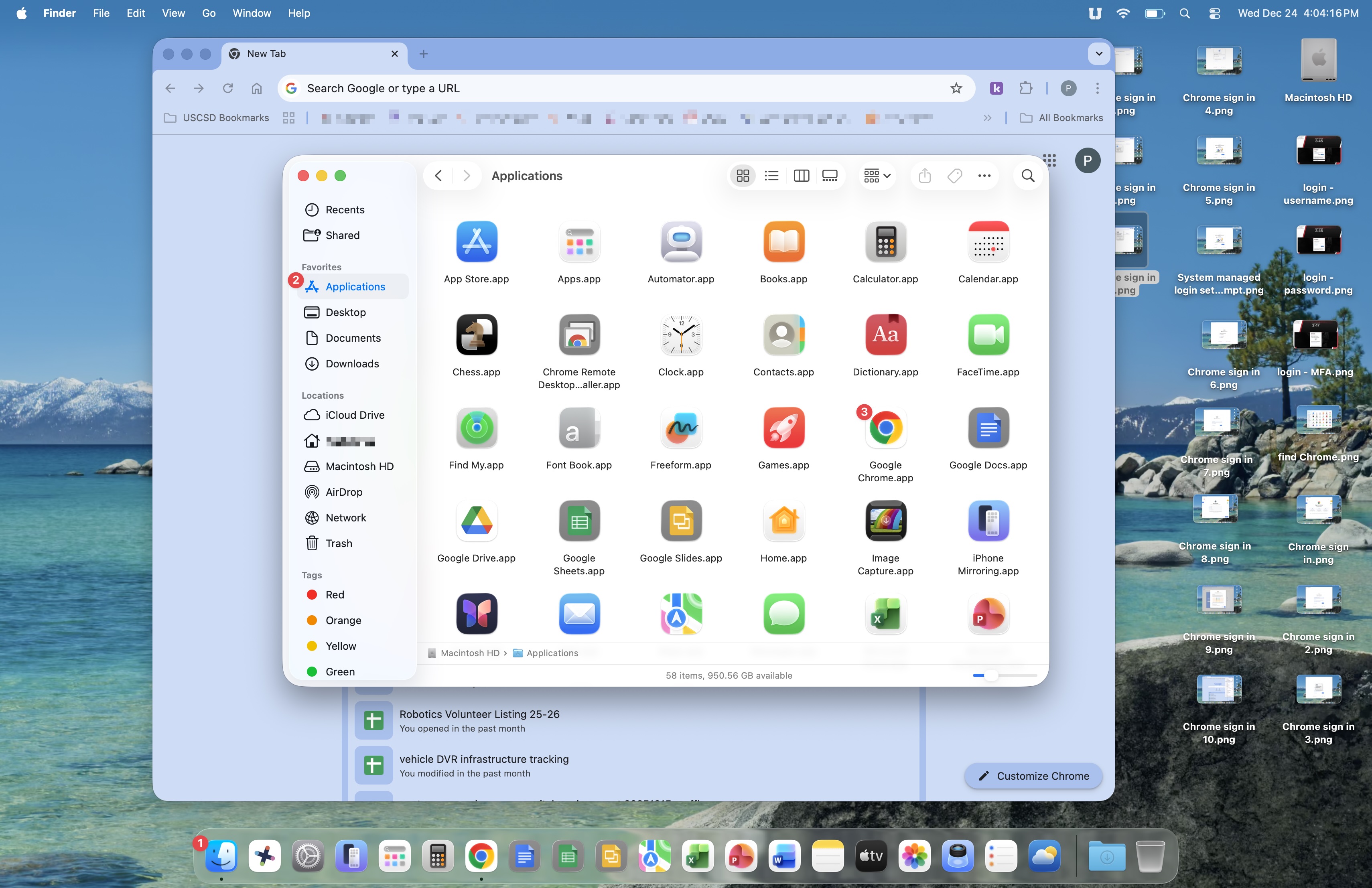
Click Finder in your Dock, then click Applications. Now double-click on the Google Chrome app.
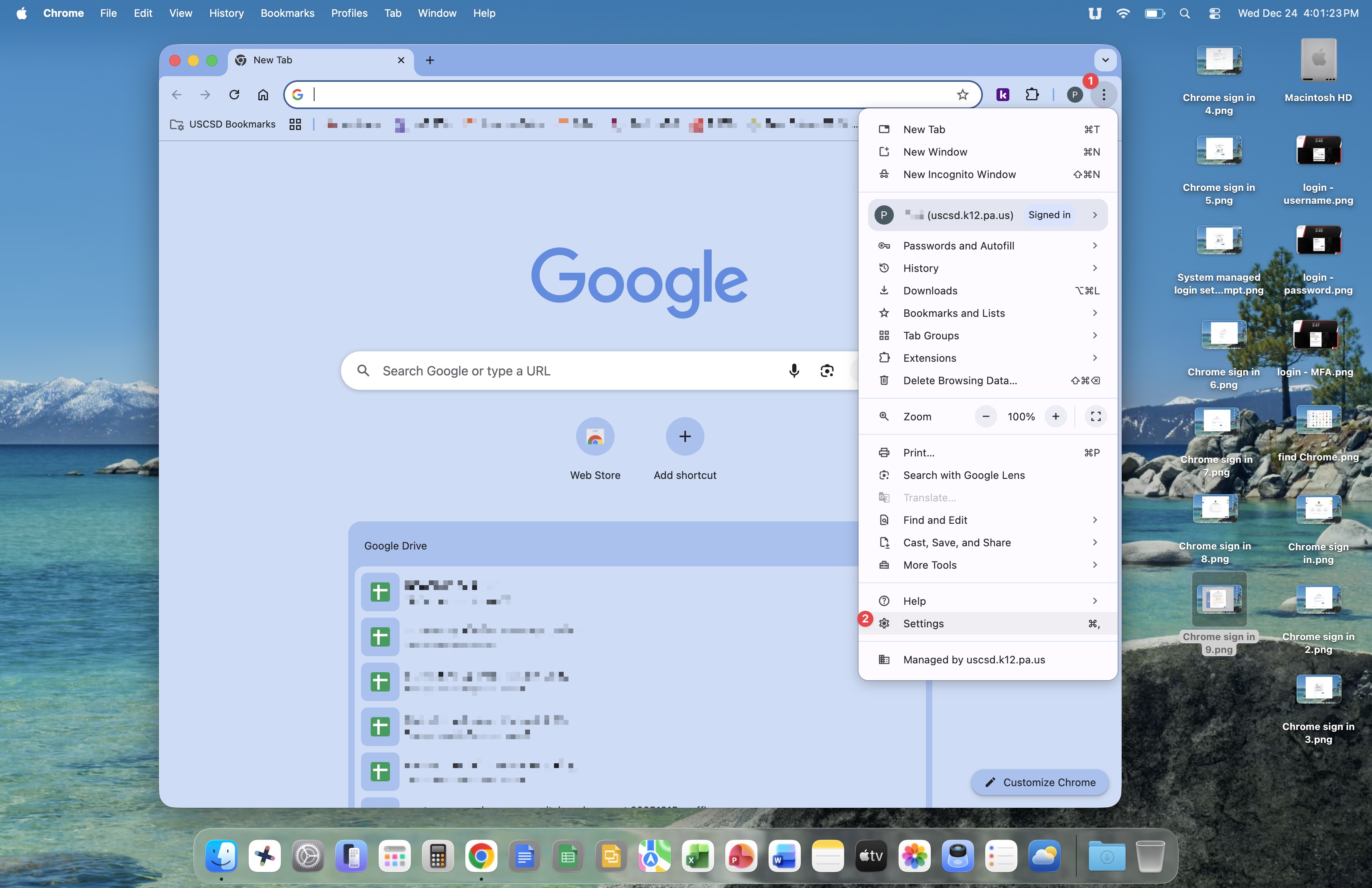
Click the three-dot menu icon, then Settings.
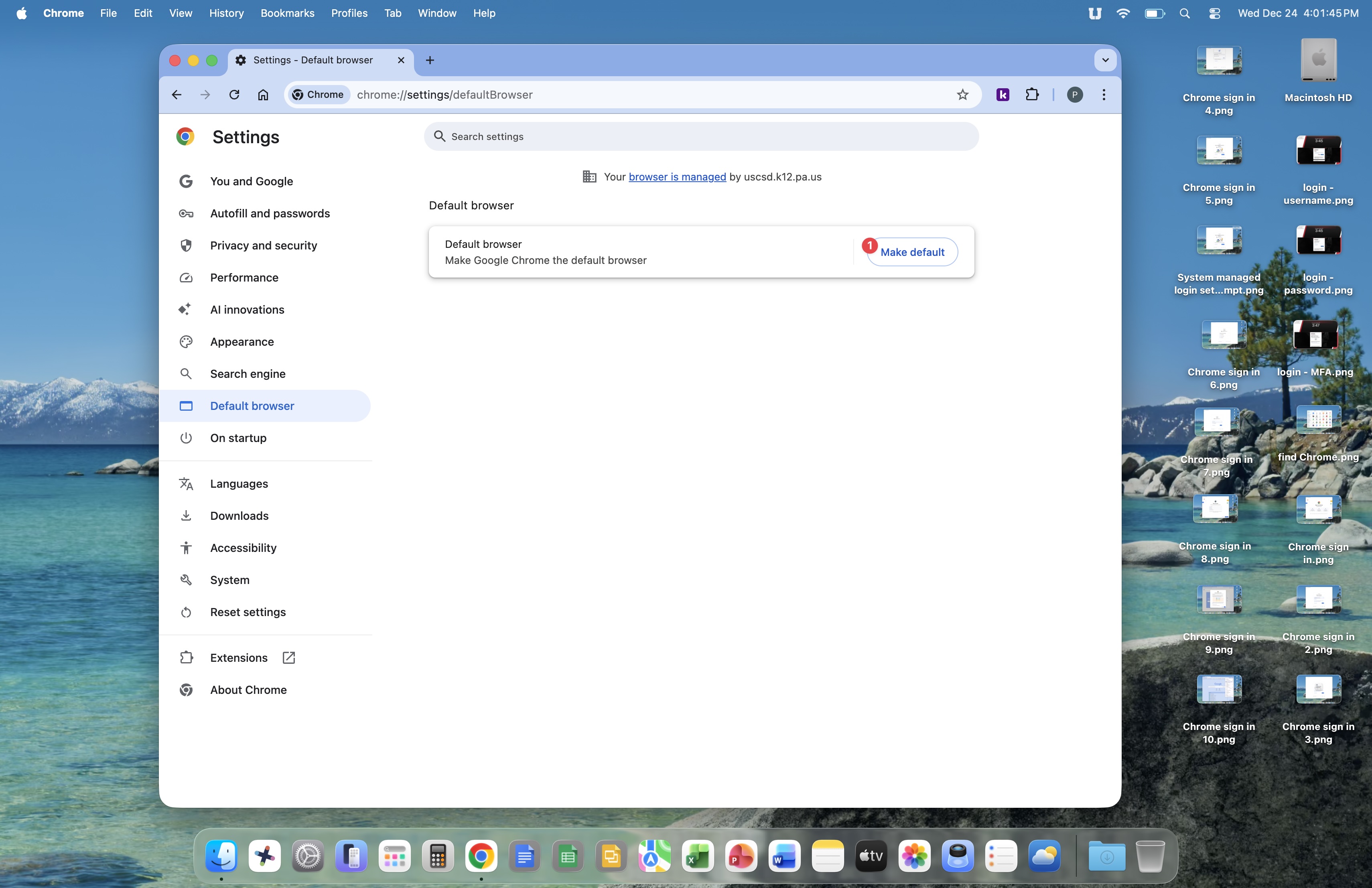
Click the Make default button.
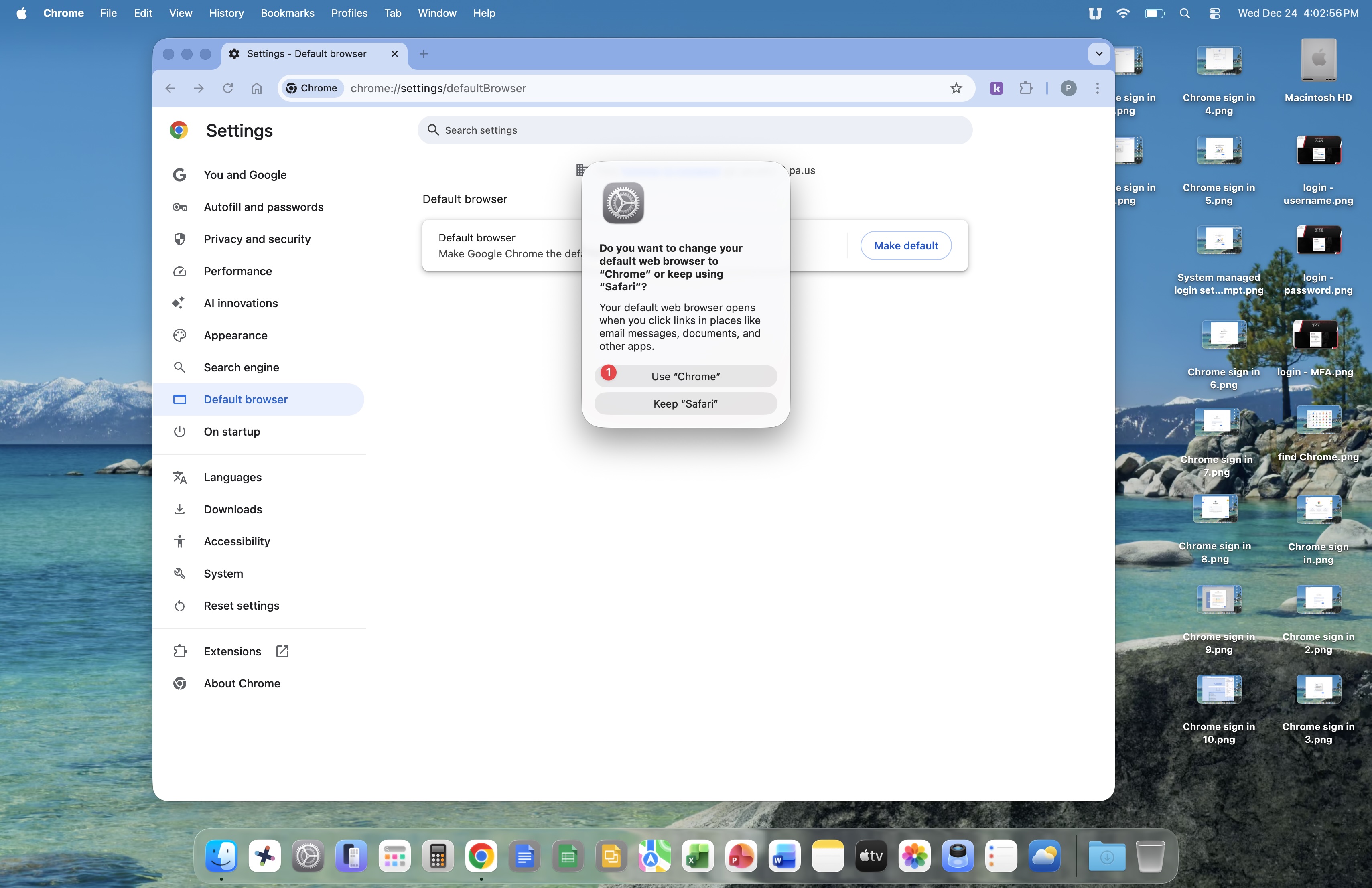
Your Mac will now prompt you once more about choosing your default web browser. Click the Use "Chrome" button.
Your default web browser is now Google Chrome, meaning that when ever you click a link, the web page will open in Chrome.